
User groups allow admin users to create a template for user permissions and document access that can be applied to multiple individual users saving the admin time and energy when adding users to the site. Groups can be “standalone”, meaning no additional permissions need to be applied at the individual level, or they can be used in conjunction with individual user access.
All users must be part of an initial group so for new users with unique access, an Admin User will need to create the new group before adding the new user.
To create or modify groups, click admin in the far-left blue menu, then select groups from the grey menu, then click the plus sign (+) to create a new user group. After naming and creating the group, you will see options to define rights, indexes, and document state access, these values are custom to your particular site. Users can be added to the group from the info tab or via the individual user’s profile. Common custom groups include view-only access to a specific document for a specific department or location, for example, a payroll group that only has access to payroll-related documents for their specific location or an office administrator who only has access to emergency contact forms for the entire organization.
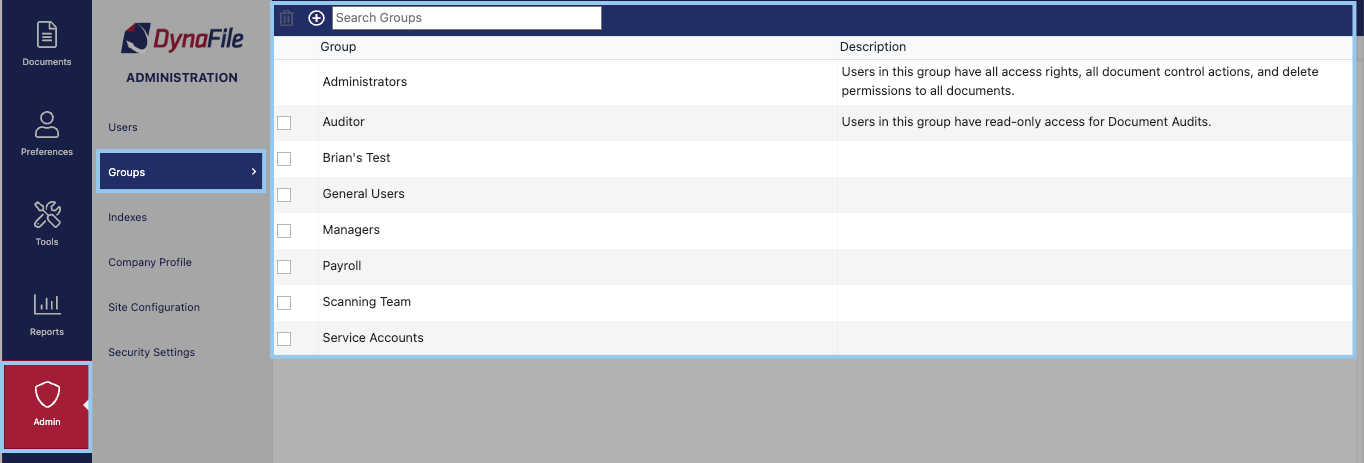
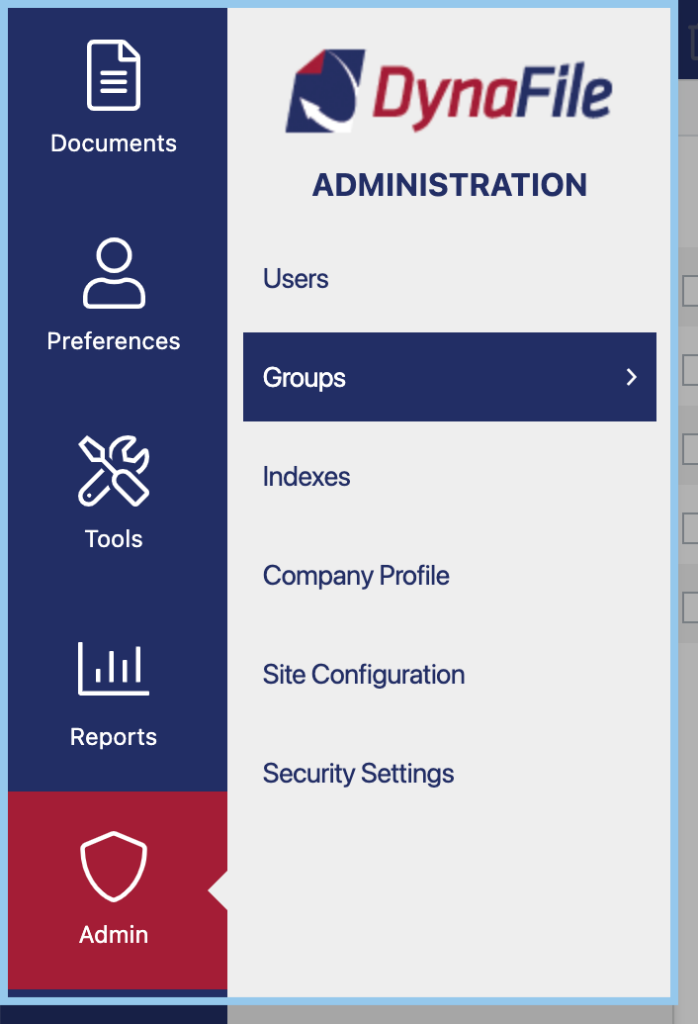
Add New Group
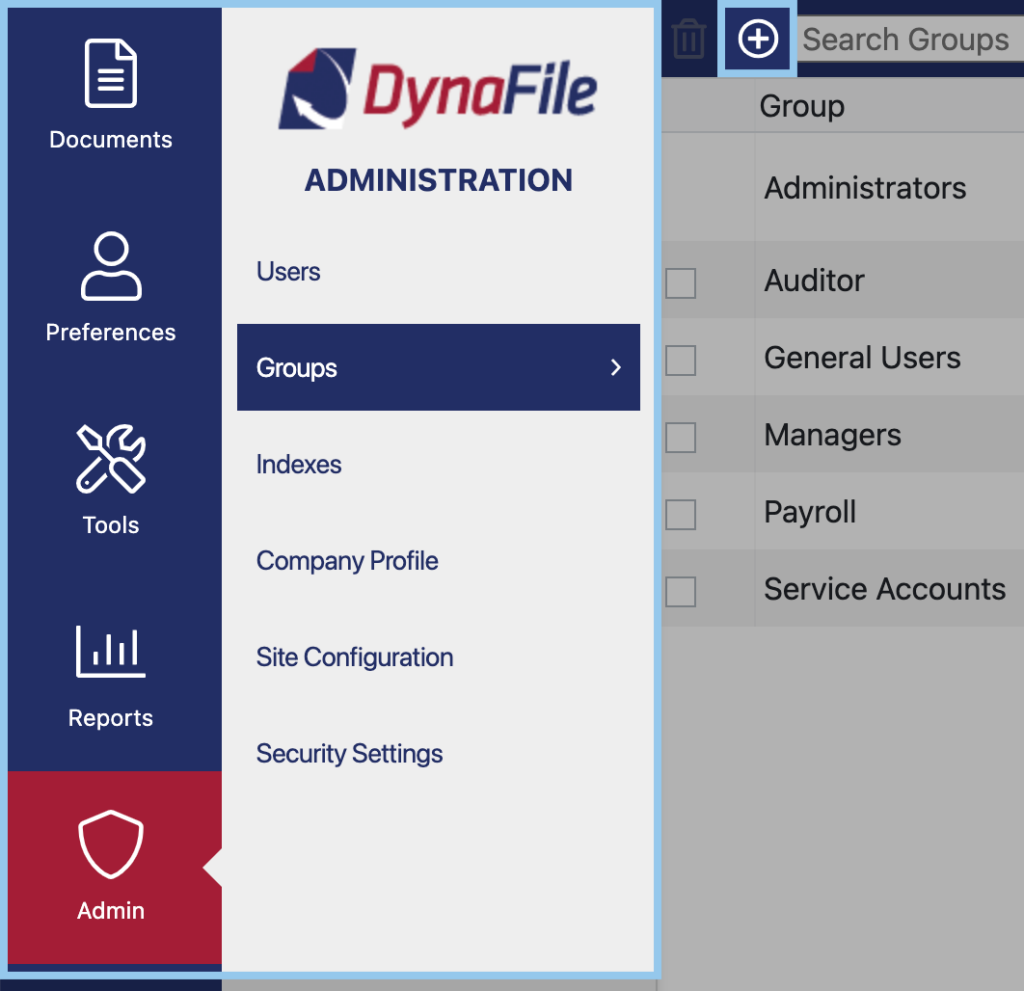
Administrators can add groups to DynaFile by clicking the Create New Group Icon

Edit Group
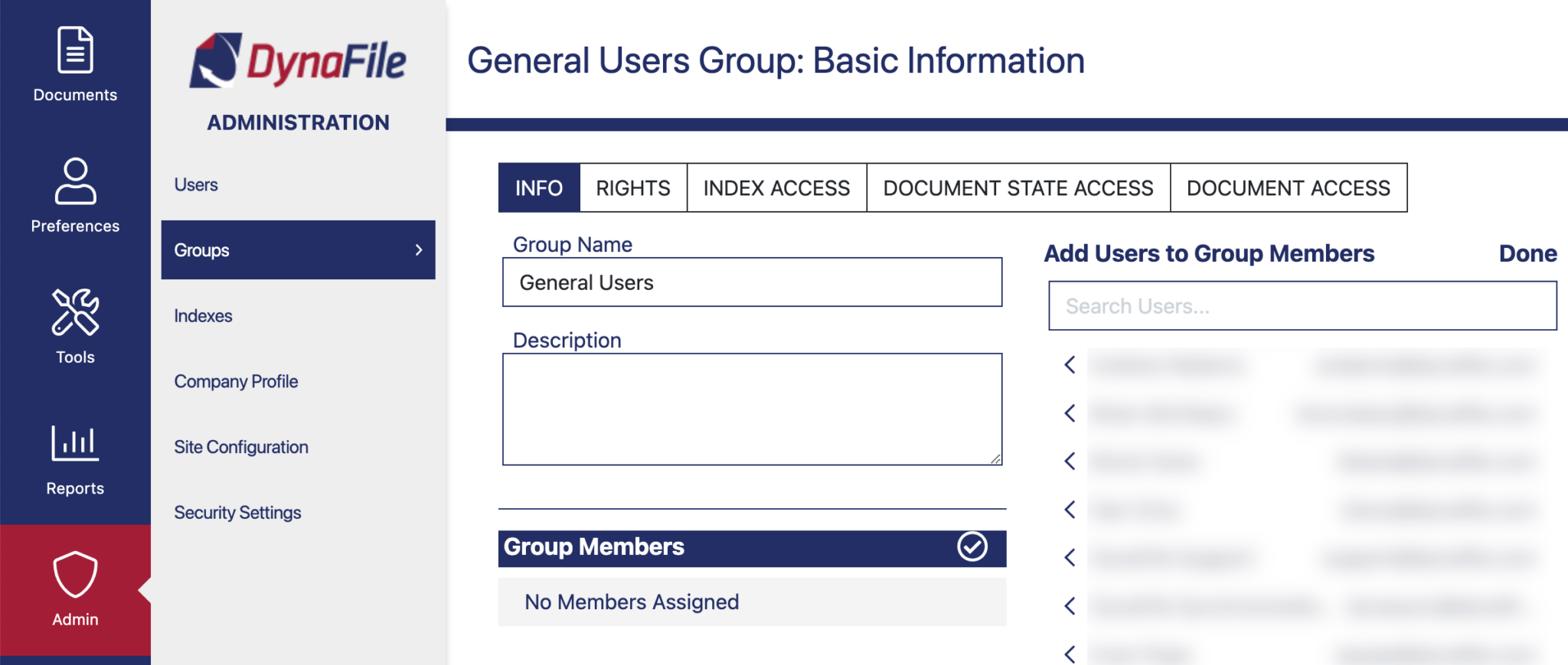
Administrators can manage document access for user groups by simply clicking on the group name and then you can control access for the users in those groups.
Delete Group
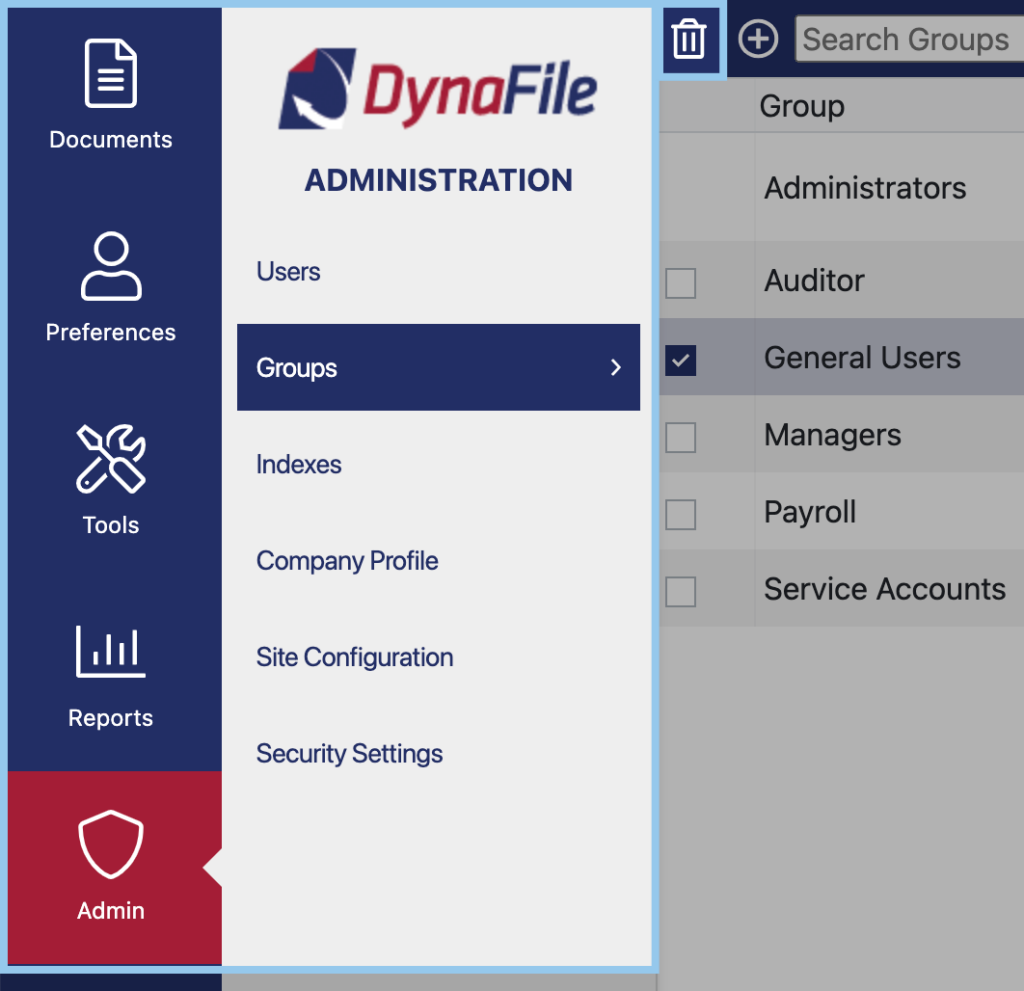
Administrators can delete groups from DynaFile by checking off the checkbox and clicking the Delete Selected Groups icon.